Featured Articles

Windows Server
IIS backup and restore
Learn how to back up and restore IIS 10 webserver configuration with appcmd.exe and PowerShell
Latest articles

Windows Server
Learn how to back up and restore IIS 10 webserver configuration with appcmd.exe and PowerShell
Windows Server
Last updated:
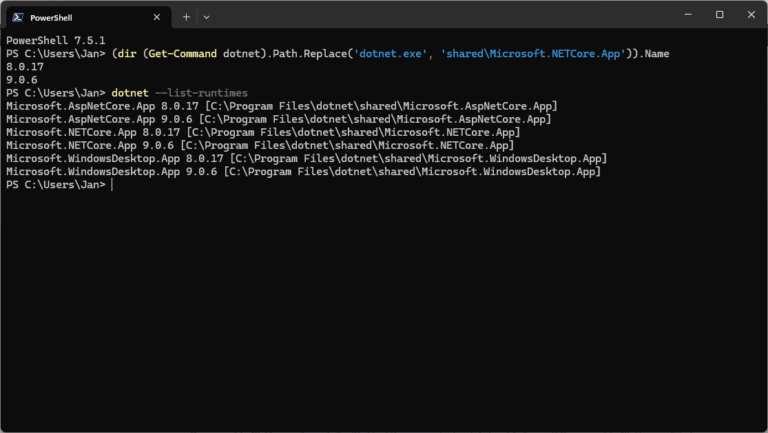
Users can install and run multiple .NET Framework versions on their computers. When you develop or deploy your app, you might need to know which .NET versions are installed on a machine and here is how to check the .NET version.

Windows Server
Last updated:
The AppCmd.exe command is your one-stop-shop for administering Windows Server IIS web servers. In combination with WinRM it is your Swiss Army knife for your daily routine. This post introduces appcmd and provides you with a lot of helpful appcmd examples.
Windows Server
Last updated:
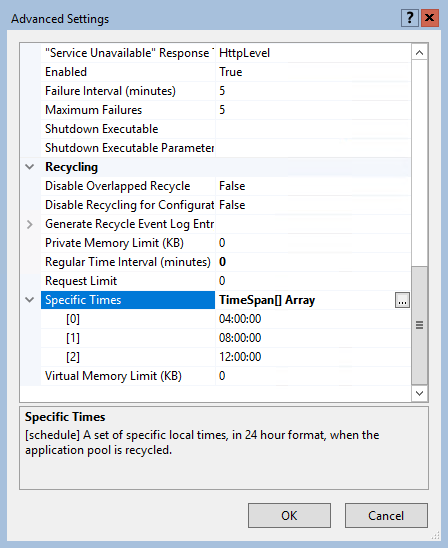
By default, an IIS application pool (or "AppPool") recycles on a regular time interval of 1740 minutes, or 29 hours. One reason for this time interval is that application pools don't recycle at the same moment every day (every day at 07.00 for example).

Windows Server
Last updated:
In this article you'll learn how to start all stopped application pools that have the ApplicationPool.AutoStart property set to $True using AppCmd.exe or PowerShell. This is something you often or occasionally have to perform on various servers, for example when an application pool hangs.
Windows Server
Last updated:
Windows Server IIS loves to tell the world that a website runs on IIS. It does so with the "Server:" header in the HTTP response, as shown below. In this post I'll show you how to remove HTTP response headers in Windows Server IIS. You don't want to give hackers too much information about your servers, right?.
Windows Server
Last updated:
Address both x86 and x64 versions of .NET with AppCmd. When administering an IIS web server you frequently have to use AppCmd.exe to make configuration changes. Whether it is for a specific web site or server wide. Some think AppCmd is very limited, but here is how you can target multiple ASP.NET versions with AppCmd!
Codebase
Last updated:
How to use PowerShell to add websites and application pools in IIS
Windows Server
Last updated:
Somewhere in my archives, I found this VBScript for stopping, starting and recycling an IIS 6.0 application pool. It doesn’t use adsutil.vbs. It might come in handy, because it’s always very time consuming to start the Computer Management console, click through Services and Applications > Internet Information Services (IIS) Manager > Application Pools to find the Application Pool you want to start, stop or recycle.
Windows Server
Last updated:
Multiple vulnerabilities in IIS 6.0 and 7.5 web servers were reported to the Full-Disclosure mailing list by Kingcope. I tested them, and here are the workarounds.
Windows Server
Last updated:
Learn how to resolve the Failed Request Tracing (FREB) error LOG_FILE_MAX_SIZE_TRUNCATE in IIS by increasing the maximum log file size with AppCmd.