
In short, here are the few steps you need to perform to enable HTTP/3 in Windows Server 2022. Enabling HTTP/3 increases IIS web performance greatly. I can't provide you with full details and how-to's, as I don't know your network. To enable HTTP/3 in Windows Server 2022 IIS 10.0, in a nutshell:
While this guide focuses on Windows Server 2022 where it required manual registry configuration, note that in newer versions like Windows Server 2025, HTTP/3 support is native and enabled by default.
- Add registry values to EnableHttp3 and EnableAltSvc:
reg add "HKEY_LOCAL_MACHINE\SYSTEM\CurrentControlSet\services\HTTP\Parameters" /v EnableHttp3 /t REG_DWORD /d 1 /f

reg add "HKEY_LOCAL_MACHINE\SYSTEM\CurrentControlSet\services\HTTP\Parameters" /v EnableAltSvc /t REG_DWORD /d 1 /f- Verify QUIC traffic (443/UDP) is allowed on your server firewall and in your network:
(Get-NetFirewallRule) | ?{
  $_.DisplayName -eq "World Wide Web Services (QUIC Traffic-In)"
}- If
Get-NetFirwallRuleprovides no results, open up your firewall to allow QUIC traffic for Internet Information Services (IIS) [UDP 443]:
New-NetFirewallRule -DisplayName "Allow QUIC" -Direction Inbound -Protocol UDP -LocalPort 443 -Action Allow -LocalOnlyMapping $trueThese steps worked in my environment with Windows Server 2022 build 10.0.20348. But only on a freshly installed server, not in an in-place upgraded server from pre GA to this GA build. Further, a lot depends on your network: do you allow QUIC traffic traffic through your firewall? There are some different circumstances and results mentioned in the linked blog post below.
Alt-Svc: an HTTP/2 Frame, Not a Header
Here is something that had me puzzled for a while. With EnableAltSvc set to 1, HTTP.SYS does not add an Alt-Svc response header. It advertises HTTP/3 with an HTTP/2 ALTSVC frame (RFC 7838), sent right after the SETTINGS frame of an HTTP/2 connection.
That has a few consequences you will run into:
curl -I and Invoke-WebRequest in Windows PowerShell 5.1 speak HTTP/1.1, so they never see the advertisement. An empty Alt-Svc header is not a sign that HTTP/3 is broken.
HTTP.SYS only sends the ALTSVC frame for host name (SNI) certificate bindings. With an IP:port binding nothing is advertised, whatever the registry says. Check your bindings first:
netsh http show sslcert | Select-String 'Hostname:port|IP:port'Every :443 binding should show up as Hostname:port. If you need an actual header, for HTTP/1.1 clients or for IP bindings, add it as a custom response header in IIS: Alt-Svc: h3=":443"; ma=86400.
How to Verify the ALTSVC Frame with nghttp
Browser Developer Tools tell you whether HTTP/3 was used, not whether it was advertised. To see the advertisement itself, use nghttp from the nghttp2-client package (Debian, Ubuntu, or WSL):
nghttp -nv https://www.example.com/ 2>&1 | grep -A1 ALTSVCWhen it works, you get:
 recv ALTSVC frame <length=51, flags=0x00, stream_id=0>
      (origin=[https://www.example.com:443], altsvc_field_value=[h3=":443"])
stream_id=0 means the advertisement applies to the whole connection. Neat!
How to Force HTTP/3 from PowerShell 7
Invoke-WebRequest -HttpVersion 3.0 silently falls back to HTTP/2, so it proves nothing. With HttpClient and RequestVersionExact there is no fallback: either you get HTTP/3 or an error.
[System.Net.Quic.QuicConnection]::IsSupported   # must be True
$client = [System.Net.Http.HttpClient]::new()
$req = [System.Net.Http.HttpRequestMessage]::new([System.Net.Http.HttpMethod]::Head, 'https://www.example.com/')
$req.Version = [version]'3.0'
$req.VersionPolicy = [System.Net.Http.HttpVersionPolicy]::RequestVersionExact
$client.SendAsync($req).GetAwaiter().GetResult().Version
If it returns 3.0, QUIC works end to end. Two gotchas: the synchronous Send() method only supports HTTP/1.1, so use SendAsync(). And don't read the Alt-Svc header from the response, because HTTP.SYS never sends one (see above).
TLS 1.3 cipher suites for HTTP/3 (QUIC)
Ensure TLS 1.3 is enabled in your registry, as HTTP/3 will not negotiate over TLS 1.2.
HTTP/3 relies entirely on QUIC, which mandates the use of TLS 1.3. Unlike older TLS versions, TLS 1.3 drastically simplifies the number of supported cipher suites. To ensure your IIS server can successfully negotiate HTTP/3 connections, your system must support and prioritize the following three mandatory TLS 1.3 cipher suites:
- TLS_AES_256_GCM_SHA384 (Highly recommended & strongest)
- TLS_CHACHA20_POLY1305_SHA256 (Excellent performance, especially on mobile devices)
- TLS_AES_128_GCM_SHA256
| Cipher Suite | Encryption | Hash | Requirement |
|---|---|---|---|
| TLS_AES_256_GCM_SHA384 | AES 256-bit GCM | SHA384 | Mandatory for high security |
| TLS_CHACHA20_POLY1305_SHA256 | ChaCha20-Poly1305 | SHA256 | Preferred for mobile/low-power CPU |
| TLS_AES_128_GCM_SHA256 | AES 128-bit GCM | SHA256 | Baseline mandatory |
Important: If you use third-party crypto tools (like IIS Crypto) to harden your Windows Server, make sure these three TLS 1.3 ciphers are checked and enabled. Disabling them will immediately prevent HTTP/3 from functioning, forcing browsers to fallback to HTTP/2 over TCP.
Enable these cipher suites, for example TLS_CHACHA20_POLY1305_SHA256 using PowerShell:
Enable-TlsCipherSuite -Name TLS_CHACHA20_POLY1305_SHA256 -Position 0And verify it's enabled: (Get-TlsCipherSuite).Name | Select-String CHACHA
You may find more information about enabling HTTP/3 in Windows Server 2022 IIS in Tommy Jensen's post Enabling HTTP/3 support on Windows Server 2022.
How to verify HTTP/3 is working in IIS
Once you have restarted your server, you can verify if HTTP/3 (QUIC) is successfully negotiating using your browser's Developer Tools (F12).
- Open Google Chrome, Microsoft Edge or Firefox and press
F12to open the Developer Tools. - Navigate to the Network tab.
- Right-click on any column header (e.g., Name or Status) and ensure the Protocol column is checked.
- Refresh the page (
F5).
In the Protocol column, you should now see h3 listed for your website's requests, indicating a successful HTTP/3 connection over UDP. If you see h2, the browser fallback to HTTP/2 occurred, meaning you should double-check your firewall's UDP port 443 settings or TLS 1.3 configuration.
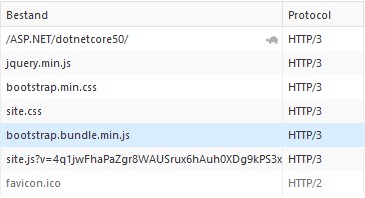
HTTP/3 Troubleshooting Checklist
- Reload the page. The first request always goes over HTTP/2. That is how the browser learns about HTTP/3. Only the next requests use h3.
- Firefox remembers failures. If an earlier HTTP/3 attempt failed, Firefox may stick to h2 for a while. Test in a private window and check about:networking#http3.
- TLS-inspecting proxies. A corporate proxy that inspects TLS swallows the ALTSVC frame and often blocks QUIC. Test from outside it.
- NAT and port forwards. Opening UDP 443 in Windows Firewall is not enough. Your edge firewall's port forward must be TCP/UDP, not just TCP.
- SNI passthrough proxies. A reverse proxy that routes TCP on SNI without terminating TLS cannot route QUIC by host name. Give the backend its own IP address, or terminate HTTP/3 on the proxy.
- IIS Crypto 4.0 templates. IIS Crypto 4.0 has its own Enable HTTP3 and Enable AltSvc template items. Apply a template that does not contain them, for example one saved with an older version, and IISCryptoCli deletes EnableHttp3 and EnableAltSvc. HTTP/3 is then quietly off again after the next reboot. Save your templates with IIS Crypto 4.0, and make sure both items are in there.
- The firewall rule probably exists already. On Windows Server 2022 and later, the IIS role creates the rule IIS-WebServerRole-QUIC-In-UDP itself. Check it before adding your own:
Get-NetFirewallRule -Name 'IIS-WebServerRole-QUIC-In-UDP' -ErrorAction SilentlyContinue |
  Select-Object Enabled, Action, Profile
QUIC - HTTP/3 - performance counters
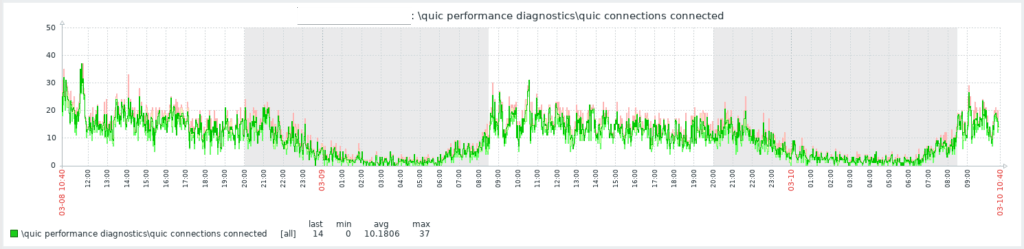
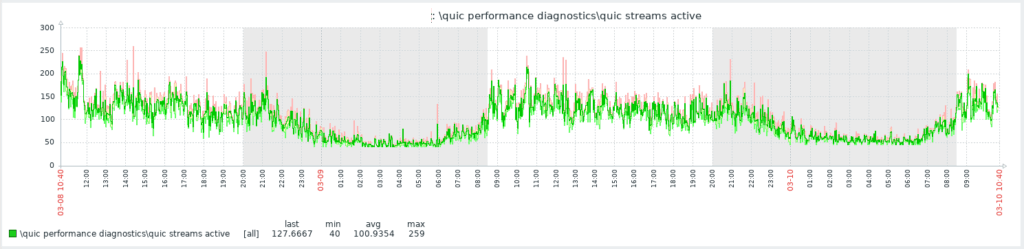
In your monitoring tool, you can get metrics from the (HTTP/3) \QUIC Performance Diagnostics\* performance counters, for example for in your Zabbix monitoring and templates. Use Performance Counters:
- \QUIC Performance Diagnostics\quic connections connected
- \QUIC Performance Diagnostics\quic streams active
Neat! 🙂