
Maintaining your Windows computer is important for the proper functioning of your computer and programs. Therefore, here are 7+ tips! A well-maintained computer is faster because programs run smoothly and there are no errors or corrupt files. Performing Windows maintenance regularly is therefore important: a clean PC is a fast PC, and you also want your computer to function well and quickly.

Key Takeaways
- Regular Windows maintenance is essential for optimal performance and error prevention.
- Utilize tools like SFC and DISM to check and repair the integrity of system files.
- Employ CHKDSK and defragmentation to detect disk errors and organize file storage.
- Remove unused programs and avoid unreliable registry cleaners to enhance system health.
- Always apply Windows Updates to improve security and maintain performance.
Windows Computer Maintenance
Has Windows become very slow? In this article I discuss several Windows maintenance tasks that you can use to keep your computer’s performance at peak level. Some maintenance tasks are already automatically performed by Windows through scheduled tasks. It does no harm to run these tasks manually once in a while.
To follow this article, some experience with the Windows command-prompt (cmd.exe, Windows PowerShell or PowerShell) is recommended.
System File Checker (SFC), Scan the Integrity of Windows System Files
If Windows system files become corrupt, Windows by default stores all installation files of Windows components and updates twice, in the system folder C:\Windows\WinSxs – also known as the Windows Component Store. Microsoft designed it this way so that if important Windows system files become corrupt from time to time, there is always a backup available.
With the sfc.exe program you can check the integrity of Windows system files. If this program finds corrupt files, they can be automatically restored from the Component Store. Handy! SFC stands for System File Checker.
To run a System File Checker check you must open a command prompt (cmd.exe) as an administrator. Then type sfc.exe /? to view all options.
Start cmd.exe as an administrator: Press the Windows key and type cmd. The command-prompt app will appear as a search result. Select Run as administrator.

When you run sfc.exe /? you will see two main options:
- /SCANNOW – Scans the integrity of all protected system files and repairs files with problems when possible.
- /VERIFYONLY – Scans the integrity of all protected system files. No repair operation is performed.
It is recommended to start with /VERIFYONLY. If corrupt files are found, you can always repair them later with /SCANNOW.
In the example below, Windows found corrupt files but couldn’t repair them. This is logged in the file C:\Windows\Logs\CBS\CBS.log, which you can view with Notepad. I suspect this is because I sometimes clean up the WinSxs folder.

Using the DISM command to repair a Windows Image
In Windows 11 and 10, DISM is a tool developed to prepare, modify, and repair system images including the Windows Recovery Environment, Windows Setup, and Windows PE (WinPE). Administrators can also use this tool to repair an existing Windows installation.
I’ve written about using DISM and cleaning up disk space in Windows before:
In short, there are three commands: two to check the health of the image and one to repair it if Windows deems it necessary. In a command-prompt opened as administrator, you can run the following:
DISM.exe /Online /Cleanup-Image /CheckHealthDISM.exe /Online /Cleanup-Image /ScanHealthDISM.exe /Online /Cleanup-Image /RestoreHealth
“ScanHealth” is a deeper scan than “CheckHealth”, and “RestoreHealth” performs repairs when needed. You see all three of them here in one image

Disk Defragmentation – defragment partitions and drives
Defragmenting the hard drive is important to place files neatly in sequence on the disk. Over time, files on a hard drive become fragmented: when you delete files, space appears between existing files (fragmentation), and that free space remains unused.
By defragmenting the hard drive, all files are placed back in sequence, this improves speed and you even gain some extra disk space. On SSDs the process is different than on SATA hard drives, but defragmentation is still important to optimize the drive.
Via Windows Explorer you can select “Optimize” under the Tools tab in the properties of a drive to perform defragmentation.


CHKDSK – scan the disk volume for errors
With the chkdsk program you can find and fix errors on your hard disk. The name Chkdsk stands for “check disk” and is a handy tool provided by Microsoft. Microsoft tips:
You should periodically use the Check Disk tool to check the integrity of disks. Check Disk examines disks and can correct many types of common errors on FAT16, FAT32, and NTFS drives. One of the ways Check Disk locates errors is by comparing the volume bitmap with the disk sectors assigned to files in the file system. Check Disk can’t repair corrupted data within files that appear to be structurally intact, however. You can run Check Disk from the command line or through a graphical interface.
Tip: Run Check Disk from a Command Line to Check for and fix Disk Errors
Check Disk examines disks and can correct many common errors on FAT16, FAT32, and NTFS drives, and can be run from the command line or via a graphical interface.
In the graphical Windows environment you can find the disk check option in the properties, through the “Check” button. From the command prompt you run chkdsk.exe to check a volume.


For example, chkdsk /scan or chkdsk /scan /F /forceofflinefix can find and fix defects, although some repairs may require a restart.
/F– Fixes errors on the disk/forceofflinefix– NTFS only: (Must be used with “/scan“). Bypass all online repair; all defects found are queued for offline repair (i.e. “chkdsk /spotfix“).
Windows System Restore
With Windows System Restore you can create a snapshot (restore point) at a moment when your PC is running well. If your PC later becomes slow or unstable and cannot be fixed, you can revert Windows to the snapshot.
However, creating restore points takes disk space and Windows checks restore points at startup; more restore points can slow startup.
Removing Unused Programs
Regularly remove old programs that you no longer use because they take up space and memory. Some programs also run background services that consume system resources.
Cleaning the Windows Registry
Do not be tempted by programs that claim your Windows registry has hundreds or thousands of errors that need fixing; these registry cleaners are often fraudulent and harmful.
Messing with the registry yourself or using registry cleaners can be dangerous; the chance of deleting a valid registry key is greater than gaining any performance benefits.
Windows Update
Windows Update should not be overlooked. Microsoft regularly releases updates for Windows components and programs. These updates often fix bugs or vulnerabilities and can also improve performance.
Keeping Windows and updates applied ensures that your computer is more secure and often runs better. You easily install Windows Updates using PowerShell. If you use WSUS and find your WsusPool application pool is constantly crashing: learn to optimize the availability of your Windows Server Update Services (WSUS) instance and prevent the WSUS application pool from repeatedly crashing.
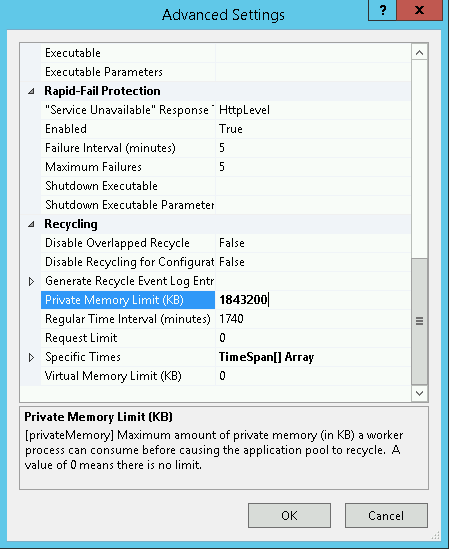
WsusPool keeps stopping? Sometimes you find your WSUS server keeps crashing over and over again. The WSUS application pool periodically stops, WSUS is unavailable and/or the WSUS management console hangs. Learn how to improve WSUS availability and increase IIS Private Memory Limit.
Are updates getting stuck or is downloading via WSUS extremely slow? You can force BITS to download WSUS updates in the foreground to immediately speed up the process. Additionally, ensure that the latest Servicing Stack Update (SSU) is installed via PowerShell to prevent installation errors.
Conclusion
Regular maintenance of a Windows computer significantly improves performance and reliability. Manual execution of maintenance tasks complements the automatic maintenance already scheduled by Windows, giving users greater control over how system resources are managed and how repairs are conducted.
Tools such as SFC, DISM, CHKDSK, and disk defragmentation serve distinct and important roles in identifying and repairing system and file errors. Removing unused software and avoiding unreliable registry cleaners further protects system stability and resource efficiency.
Finally, consistently applying Windows updates protects against security vulnerabilities and can yield incremental performance improvements over time. A proactive maintenance approach ensures that hardware and software remain aligned with best practices for performance, security, and usability.
This is an AI / ChatGPT translation of my Dutch post on ITFAQ.nl, called “Belangrijk Windows onderhoud uitvoeren – 7 tips“.
Summary
- Performing regular Windows maintenance keeps your system running efficiently and prevents errors.
- Use built-in tools like SFC and DISM to check and repair system file integrity.
- CHKDSK and disk defragmentation help detect disk errors and optimize file storage.
- Remove unused programs and avoid unreliable registry cleaners to maintain system health.
- Always apply Windows Updates to improve security and performance.