
Yesterday, I showed you how to block IP addresses in Windows Firewall using PowerShell. This comes in handy when blocking IP addresses that are brute-force attacking your servers. In this short post I’ll show you how to bulk add IP addresses in Windows Firewall, list an IP address and how to remove all IP addresses from Windows Defender Firewall with Advanced Security. Using PowerShell ofcourse.
But the GUI is also discussed, no worries 🙂
This post explains how to bulk add IP addresses in Windows Firewall, list an IP address and how to remove all IP addresses from Windows Defender Firewall with Advanced Security. Keep Windows (Server) secure.
For this post, I assume you have the same firewall data available as in my previous post Block brute force attacks on SQL Server, block IP addresses in Windows Firewall using PowerShell. Read that article first if you’re unsure. Let’s assume you have not yet created your firewall rule “IP Block SQL Server”, but you have your unique_ips.txt input file ready.
The PowerShell cmdlets I’ll be using are:
- Get-NetFirewallRule
- New-NetFirewallRule
- Get-NetFirewallAddressFilter
- Set-NetFirewallRule
- Remove-NetFirewallRule
Also read:
If you follow this article to block IP addresses in the Windows firewall and make a small mistake, you could ruin your own internet connection! Be careful, and of course, I accept no responsibility.
Add IP addresses to Windows Firewall in bulk
The Set-NetFirewallRule and New-NetFirewallAddressFilter cmdlets both accept an array as an input for the RemoteAddress attribute. And that’s great, because now you can add a lot of IP’s in bulk to your firewall:
# How to Bulk Add IP Addresses in Windows Firewall:
$ips = @()
foreach ($ip in Get-Content .\unique_ips.txt) {
  # Check for the existense of the firewall rule
  if(!(Get-NetFirewallRule -DisplayName "IP Block SQL Server" -ErrorAction SilentlyContinue)) {
    # if the rule does not exist, create it silently and keep it disabled
    New-NetFirewallRule -DisplayName "IP Block SQL Server" -Direction Inbound -Action Block -Enabled False
  }
  # compare IP addresses in the firewall rule (if any) with those in ann PowerShell array $ip
  if ((Get-NetFirewallRule -DisplayName "IP Block SQL Server" | Get-NetFirewallAddressFilter).RemoteAddress -eq $ip) {
    # debug:
    # Write-Host "IP ${ip} already blocked"
    continue
  }
  else {
    # IP address not found in the firewall rule, add it to the array
    $ips += $ip
  }
}

# Add IP addresses from the array to your firewall rule
Set-NetFirewallRule -DisplayName "IP Block SQL Server" -Direction Inbound -Action Block -RemoteAddress $ips

# Does the firewall rule contain one IP address or more?
if((Get-NetFirewallRule -DisplayName "IP Block SQL Server" | Get-NetFirewallAddressFilter).RemoteAddress.count -ge 1) {
  # debug:
  # Write-Host "Found more than one IP address, enable the rule"
  if((Get-NetFirewallRule -DisplayName "IP Block SQL Server").Enabled -eq "False") {
    # debug:
    # Write-Host "Firewall rule is disabled, enable it now"
    Set-NetFirewallRule -DisplayName "IP Block SQL Server" -Enabled True
  }
}
Add one (1) IP address in Windows Firewall
Here is how you can add one (1) IP address to block in Windows Firewall. This involves having to add that one IP address to an array of currently blocked IP’s.
$ip = "233.252.0.12"
$all_ips = (Get-NetFirewallRule -DisplayName "IP Block SQL Server" | Get-NetFirewallAddressFilter).RemoteAddress
$all_ips += $ip
Set-NetFirewallRule -DisplayName "IP Block SQL Server" -Direction Inbound -Action Block -RemoteAddress $all_ips
Look up an IP address in the Windows Firewall
Looking up an IP address in your firewall – using PowerShell – is quite easy:
# Lookup an IP address:
$ip = "233.252.0.12"
if((Get-NetFirewallRule -DisplayName "IP Block SQL Server" | Get-NetFirewallAddressFilter).RemoteAddress -eq $ip) {
  write-host "${ip} is blocked"
}
You may even use an array of IP addresses to look up in Windows Firewall with Advanced Security:
$ips = @("233.252.0.12","233.252.0.15")
foreach($ip in $ips) {
  if((Get-NetFirewallRule -DisplayName "IP Block SQL Server" | Get-NetFirewallAddressFilter).RemoteAddress -eq $ip) {
    write-host "${ip} is blocked"
  }
}
List active firewall rules
Use the following to neatly display active firewall rules. Adjust to your needs.
Get-NetFirewallRule -Enabled True -Direction Inbound |
Format-Table -Property DisplayName,Action,
@{Name='Protocol';Expression={($PSItem | Get-NetFirewallPortFilter).Protocol}},
@{Name='LocalPort';Expression={($PSItem | Get-NetFirewallPortFilter).LocalPort}},
@{Name='RemotePort';Expression={($PSItem | Get-NetFirewallPortFilter).RemotePort}},
@{Name='RemoteAddress';Expression={($PSItem | Get-NetFirewallAddressFilter).RemoteAddress}},Profile,Direction
Remove an IP address from your blocklist
Sometimes, or perhaps even often, you need to remove an IP address from your brute-force block list in Windows Defender Firewall with Advanced Security. Removing an IP address involves the same steps as adding one; you must manipulate the array of currently blocked IP’s. And except of adding one, you remove one and putt the array back.
$ip = "233.252.0.12"
$all_ips = (Get-NetFirewallRule -DisplayName "IP Block SQL Server" | Get-NetFirewallAddressFilter).RemoteAddress
$filteredAddr = $all_ips | Where-Object{ $_ -notin $ip }
Set-NetFirewallRule -DisplayName "IP Block SQL Server" -Direction Inbound -Action Block -RemoteAddress $filteredAddr
Remove firewall rule completely
If you need to remove the firewall rule completely, use Remove-NetfirewallRule:
Remove-NetFirewallRule -DisplayName "IP Block SQL Server"Or use Disable-NetFirewallRule -DisplayName "IP Block SQL Server" to disable this rule.

Did you like this post?
Please take a second to support Sysadmins of the North and donate! ❤️
Your generosity helps pay for the ongoing costs associated with running this website like coffee, hosting services, library mirrors, domain renewals, time for article research, and coffee, just to name a few. ❤️
Block IP address in Windows Defender Firewall with Advanced Security (WFAS) – GUI
If you need to block IP addresses in the Windows Defender Firewall with Advanced Security (WFAS) and you don’t want to use PowerShell, you can use the Graphical User Interface or GUI. Just as easy 🙂 .
To open up the Windows Defender Firewall with Advanced Security GUI, press the Start button and type ‘app:firewall‘.
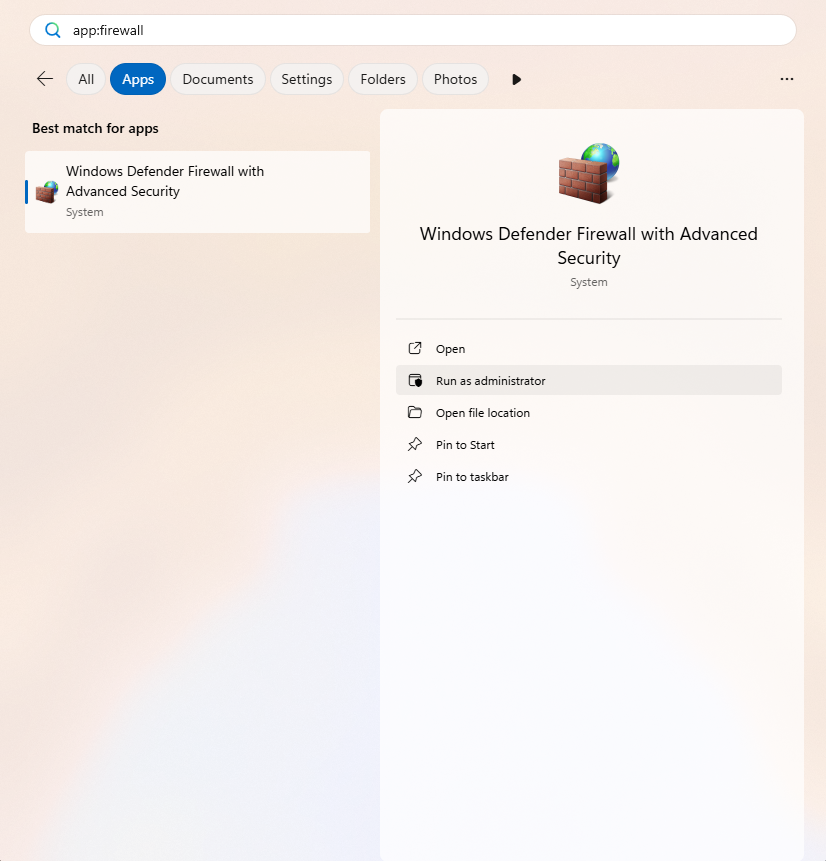
Choose Run as administrator.
Once the Firewall app is opened, head to Inbound Rules, as we want to block an external IP address connecting to our computer (incoming traffic). Then click New Rule… in the Actions pane.
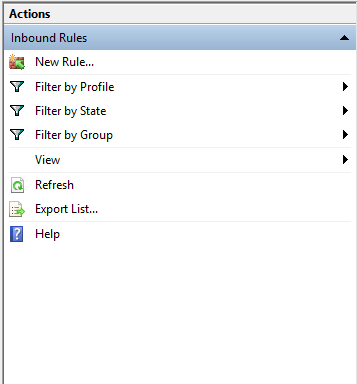
The steps and screenshots below will guide you through the process of blocking the IP address 203.0.113.15. They also briefly show you how to specify the entire range (the netblock or subnet).
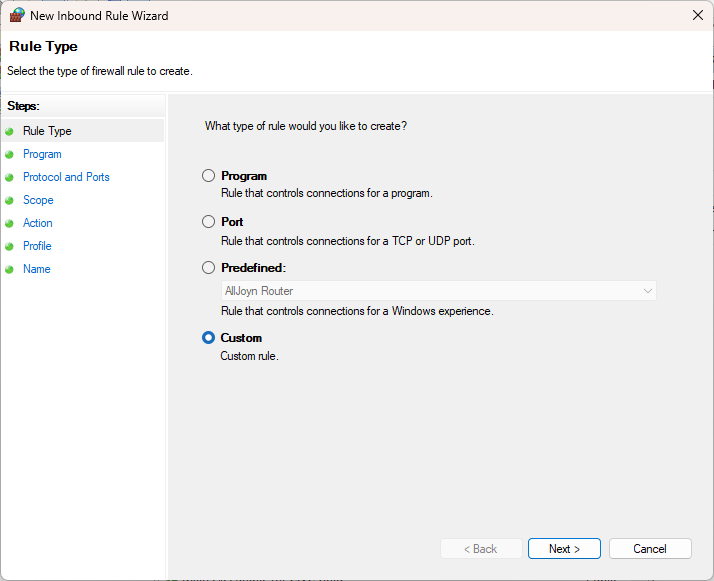
In the Rule Type screen, choose Custom.
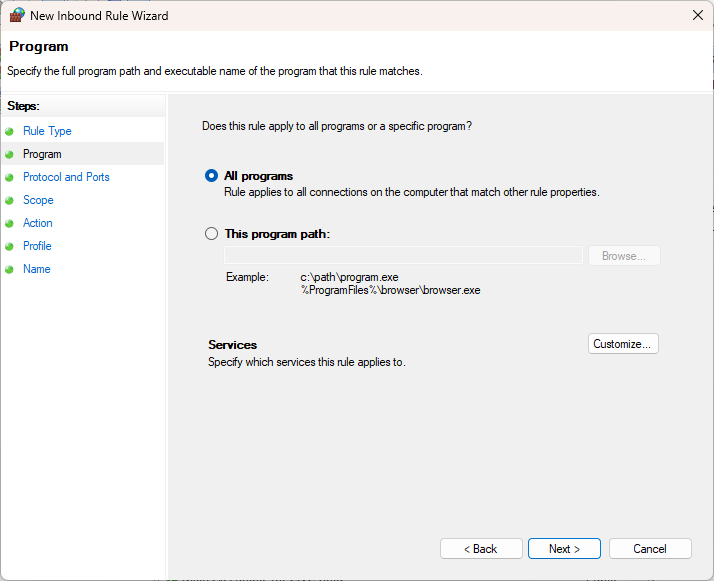
Our blockade applies to all programs, so select All programs.
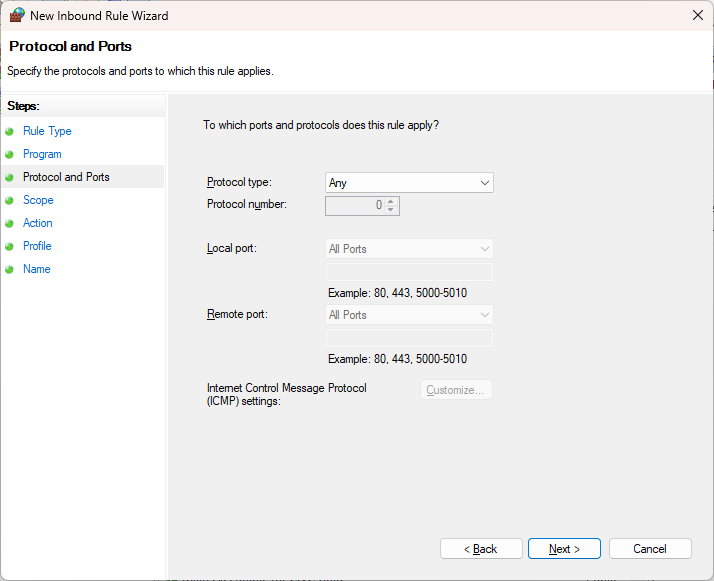
In this example, I want to block the malicious attack completely, not specifically for a port or protocol (HTTP, 80, for example). So, set this to Any:
Specify that it is an external IP address and click Add…:
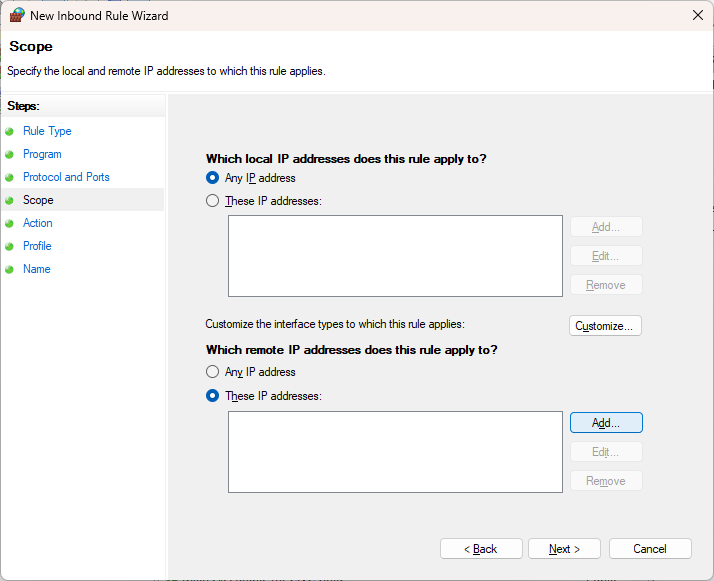
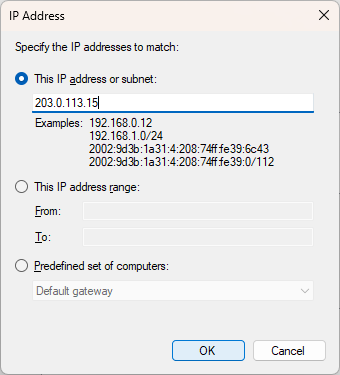
Fill out the abuser / attacker IP addres (203.0.113.15) and click OK.
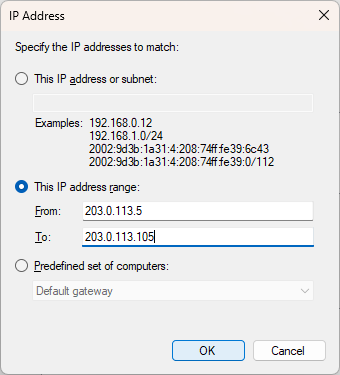
Optional: you can also specify the subnet as a range. For example, if the range needs to be smaller than /24: 203.0.113.5 through 203.0.113.105.
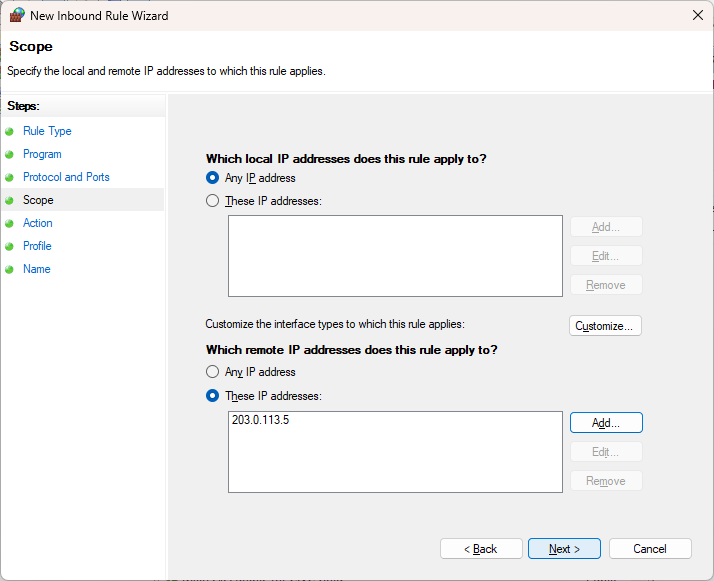
In the overview you will see confirmation that this IP address has been entered as Scope, and click Next.
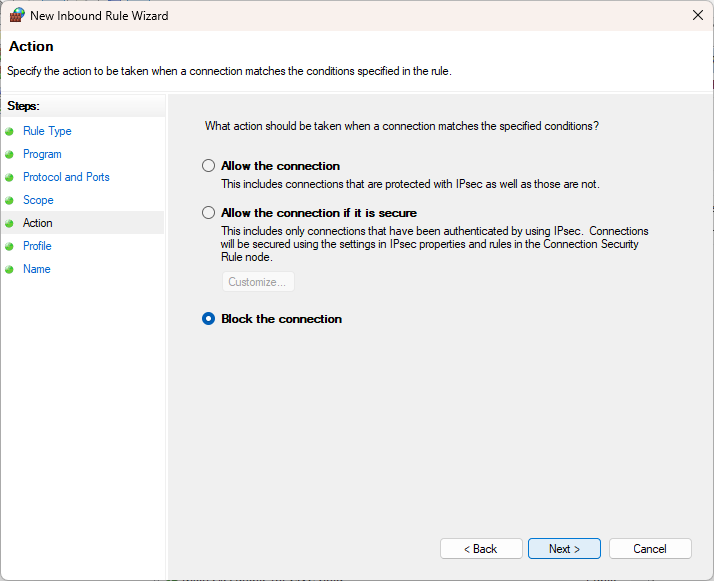
Specify that the connection should be blocked: Block the connection
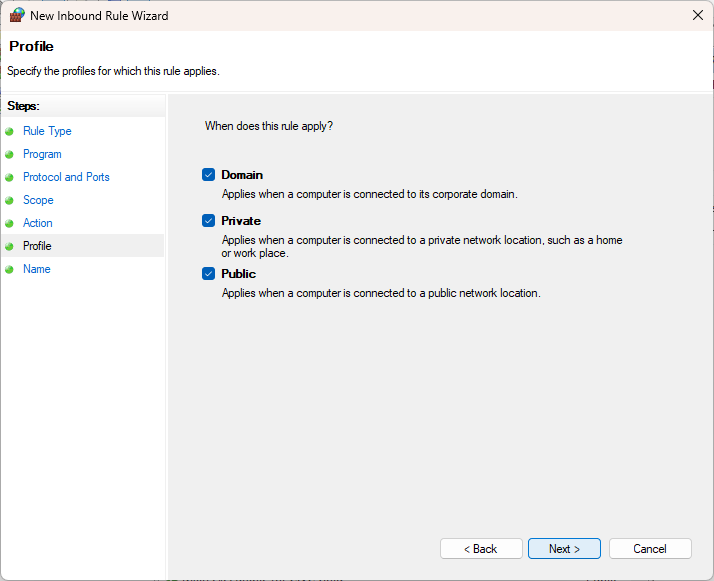
And which network it applies to
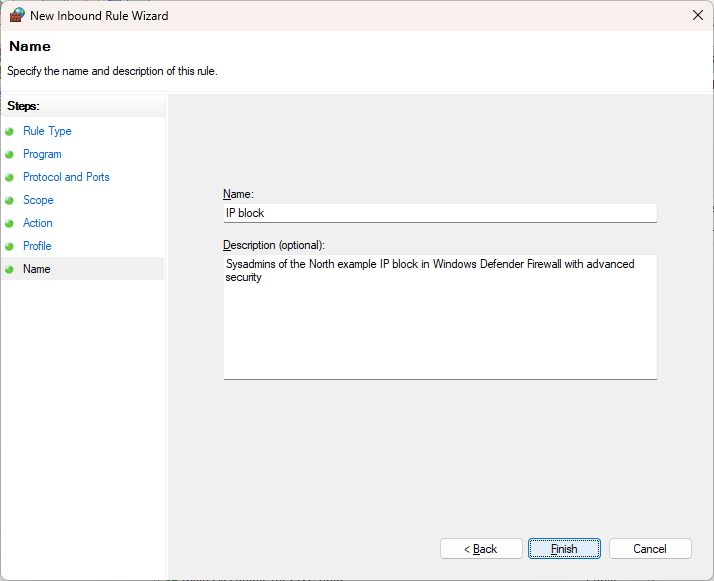
Finally, you need to give the rule a clear, recognizable name and description
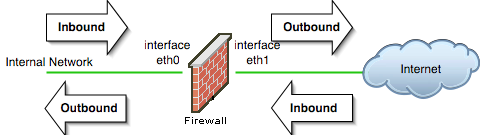
Inbound or outbound network traffic
Which network traffic is considered inbound or outbound depends on your location. See the image below for more visual information.
PowerShell and CMD command-prompt
You can open the Windows Defender with Advanced Security GUI with the wf.msc command. You can also easily block IP addresses from the CMD command prompt using netsh advfirewall.
Some quick examples to manage your Windows Defender Firewall with Advanced Security on the command-prompt using netsh (without PowerShell cmdlets).
- Use
netsh advfirewall firewall /?to get the command help information - Block IP address 203.0.113.15
netsh advfirewall firewall add rule name="IP Block" dir=in interface=any action=block remoteip=203.0.113.15- If you want to block the entire subnet 203.0.113.0/24, of which 203.0.113.15 is a part, you can enter the following:
netsh advfirewall firewall add rule name="IP Block" dir=in interface=any action=block remoteip=203.0.113.0/24- You can find the blocked rules with the show rule command of netsh advfirewall firewall:
netsh advfirewall firewall show rule "IP Block"
Rule Name:                            IP Block
----------------------------------------------------------------------
Enabled:                              Yes
Direction:                            In
Profiles:                             Domain,Private,Public
Grouping:
LocalIP:                              Any
RemoteIP:                             203.0.113.0/24
Protocol:                             Any
Edge traversal:                       No
Action: Block- And with
delete ruleyou delete all rules that match the given name:
netsh advfirewall firewall delete rule "IP block"

Deleted 1 rule(s).
Ok.
Summary
- This article covers how to bulk add IP addresses in Windows Firewall using PowerShell, as well as listing and removing IP addresses.
- PowerShell cmdlets like New-NetFirewallRule and Set-NetFirewallRule help in managing firewall rules efficiently.
- The GUI method allows users to block IP addresses in Windows Defender Firewall with Advanced Security with clear step-by-step instructions.
- Ensure you have a backup and be careful, as mistakes can disrupt your internet connection.
- The article provides helpful links to previous posts on firewall management for further reading.