
Sometimes you have use a specific TLS / SSL certificate or thumbprint for outgoing HTTPS connections because of endpoint restrictions. To test these connections you can use PowerShell, but how do you get the required certificate from your certificate store?
In this post you'll learn how to use a specific TLS certificate or thumbprint for outgoing HTTPS connections because of endpoint restrictions. All with PowerShell of course.
If an endpoint has restricted HTTPS connections based on security certificates or certificate thumbprints, you must be able to pull that certificate from your Windows Certificate Store and use it in your request. This is not a big issue if the certificate is stored in the CurrentUser store, but it gets harder when it's in LocalComputer.
Starting May 15, 2026, newly issued SSL / TLS certificates will no longer include the Client Authentication function EKU (also known as id-kp-clientAuth). This industry-wide change is part of a broader effort to improve security and clarify certificate usage. See Sectigo's FAQ Deprecation of Client Authentication EKU from Sectigo SSL / TLS Certificates for more information. Other certificate authorities follow different date paths: DigiCert May 1, 2026, Let's Encrypt May 13, 2026, Google Trust Services April 13, 2026, and browser enforcement (Chrome) applies to certificates issued from June 15, 2026. The hard, exceptionless industry cutoff is early 2027. This specifically affects this use case (public certificate as client certificate for mTLS): you need to refer to private/enterprise PKI.
How to use an SSL certificate from CurrentUser certificate store in PowerShell Invoke-WebRequest
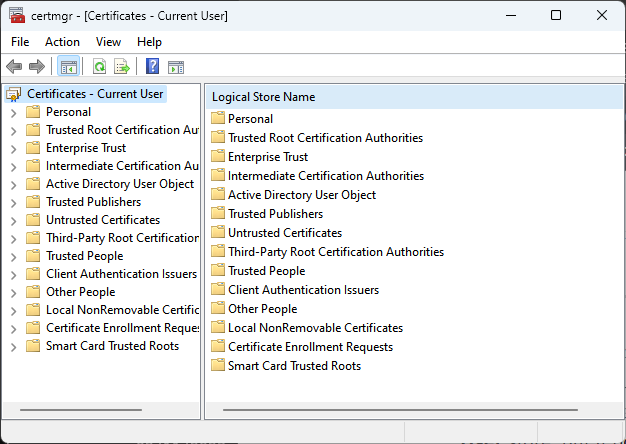
Use certmgr.msc on your command line to open up the CurrentUser certificate store in Managment Console.
If you need to use a personal TLS/SSL certificate you can pull it up using PowerShell:
$certStorePath = "Cert:\CurrentUser\My"

# Must return one result:
$certThumbPrint = (
  Get-ChildItem -Path $certStorePath |
    Where-Object {
      $_.Subject -eq "CN=www.example.org" -and $_.NotAfter -gt (Get-Date)
    } |
    Sort-Object NotAfter -Descending |
    Select-Object -First 1
).Thumbprint
Because Invoke-WebRequest will only look in the CurrentUser certificate store, this will suffice for your HTTPS request. Try:
Invoke-WebRequest -Uri https://example.com -CertificateThumbprint $certThumbPrintIf you need a LocalMachine certificate, then it becomes a (small) bit harder.
LocalMachine SSL certificate to use in PowerShell Invoke-WebRequest HTTPS requests
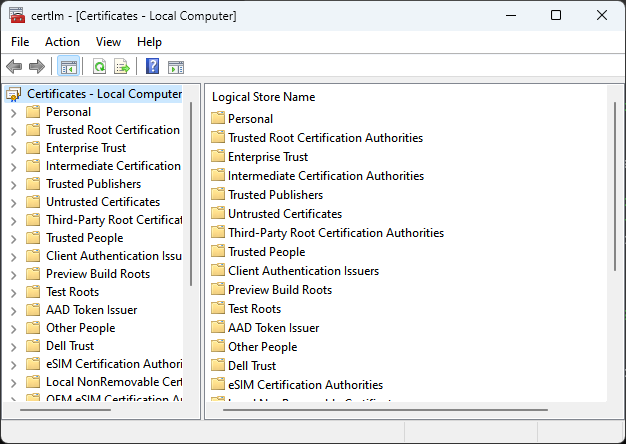
Start LocalMachine certificate store management console directly with certlm.msc.
Invoke-WebRequests only looks at the CurrentUser certificate store, you need a second approach for SSL certificates stored in LocalMachine:
Use Get-ChildItem to get the certificate itself, and pass that to Invoke-WebRequest instead of a thumbprint:
$certStorePath = "Cert:\LocalMachine\My"

# Must return one result:
$certificate = Get-ChildItem -Path $certStorePath |
  Where-Object {
    $_.Subject -eq "CN=www.example.org" -and $_.NotAfter -gt (Get-Date)
  } |
  Sort-Object NotAfter -Descending |
  Select-Object -First 1

Invoke-WebRequest -Uri https://example.com -Certificate $certificate
If you know the certificate's thumbprint - or hash - it is better to filter on that:
$certificate = Get-ChildItem -Path $certStorePath |
  Where-Object { $_.Thumbprint -eq "certificate hash here" }
If you only know a fragment use -like as fallback: Sometimes you don't know the full CN and want to match a part. In that case, you can use -like, but let validity + sorting do the work to choose the right one from multiple hits:
$certificate = Get-ChildItem -Path $certStorePath |
  Where-Object {
    $_.Subject -like "*example.org*" -and $_.NotAfter -gt (Get-Date)
  } |
  Sort-Object NotAfter -Descending |
  Select-Object -First 1
Note: this picks the longest valid match that fits the fragment. The disadvantage is that a fragment like example.org also matches foo.bar.example.org, so the more specific your fragment, the safer it is.
OpenSSL Cheat Sheet: Common SSL / TLS Commands - Never forget an OpenSSL command again. This comprehensive cheat sheet covers certificate conversion (PFX, PEM, DER), CSR generation, and remote SSL / TLS verification for Windows and Linux admins.
Private-key permissions (caveat)
With LocalMachine certificates, the executing (user) account must have read access to the private key; otherwise, the handshake fails while the certificate remains "simply" visible. In practice, this is the most common stumbling block.
Conclusion
In this post you learned how you can use PowerShell to retrieve specific SSL / TLS certificates from your certificate store for outgoing HTTPS connections. Sometimes this is required, for example when the remote endpoint is secured using client authentication certificates.
If needed you can substitute Invoke-WebRequest with Invoke-RestMethod for APIs.
Summary
- Learn how to use a specific TLS certificate for outgoing HTTPS requests in PowerShell.
- You can retrieve a certificate from the CurrentUser store using certmgr.msc and PowerShell's Invoke-WebRequest.
- Using LocalMachine certificates requires additional steps with certlm.msc and Get-ChildItem to access the private key.
- Ensure the executing account has read access to the private key to avoid handshake failures.
- You can replace Invoke-WebRequest with Invoke-RestMethod when working with APIs.