Do you have a need for IIS in your Windows 11 development station, and now you wonder how to install IIS? Internet Information Services (IIS) for Windows Server is a flexible, secure and manageable webserver for hosting anything on the web. Here I describe how you can easily install IIS and some modules using PowerShell.
This post shows you how you can install IIS in your Windows 11 DevOps workstation, easily using PowerShell, ready for automation in Windows Deployment Services or even release pipelines.
Steps to install Internet Information Services (IIS) in Windows 11 using PowerShell
To install IIS in Windows 11 you need PowerShell and some of its cmdlets. The PowerShell cmdlets you will be using are:
Get-WindowsOptionalFeatureEnable-WindowsOptionalFeature
First, lookup the available IIS related features:
Get-WindowsOptionalFeature -Online | Where-Object FeatureName -like 'IIS-*'This lists a long list of available Windows optional features and their (installation) state. Some interesting ones are:
- IIS-WebServerRole
- IIS-WebServer
- IIS-CommonHttpFeatures
- IIS-HttpErrors
- IIS-HttpRedirect
- IIS-ApplicationDevelopment
- IIS-Security
- IIS-RequestFiltering
- IIS-NetFxExtensibility45
- IIS-HealthAndDiagnostics
- IIS-HttpLogging
- IIS-RequestMonitor
- IIS-HttpTracing
- IIS-URLAuthorization
- IIS-IPSecurity
- IIS 10.0 FTP IP Security allow list (can also be used for regular HTTP)
- IIS-Performance
- IIS-HttpCompressionDynamic
- IIS-WebServerManagementTools
- IIS-IIS6ManagementCompatibility
- IIS-Metabase
- IIS-HostableWebCore
- IIS-StaticContent
- IIS-DefaultDocument
- IIS-DirectoryBrowsing
- IIS-WebDAV
- IIS-WebSockets
- IIS-ApplicationInit
- IIS-ISAPIFilter
- IIS-ISAPIExtensions
- IIS-ASPNET45
- IIS-ASP (yes, really, it can be fun!)
- IIS-CustomLogging
- IIS-BasicAuthentication
- IIS-HttpCompressionStatic
- IIS-ManagementConsole
- IIS-ManagementService
- IIS-WindowsAuthentication
Yes, these are a lot of features (e.g IIS modules). My take in this is you may want to represent an actual (general) Windows Server IIS webhosting server in your local development environment. I added some links showcasing the importance of a module and why it’s interesting.
If you manage websites in IIS (remote or local) you can install and setup IIS Manager for Remote Administration.
Windows Program and Features to turn IIS features on or off
Of course you can use Windows Program and Features to turn IIS features on or off, but as an DevOps engineer I’m sure you’ll want to use PowerShell commands and cmdlets. Commands you can add to scripting to automate the roll-out of new IIS webservers.

Using PowerShell Enable-WindowsOptionalFeature to install IIS
Secondly, all we need to do next is to feed these features (IIS modules) to the Enable-WindowsOptionalFeature cmdlet. You can comma separate them on the command prompt, but for this, I like to create an array because that looks more clear and is more easy to extend in scripting.
Plus it looks nice in diffs and commits 😉

$features = @(
  "IIS-WebServerRole",
  "IIS-WebServer",
  "IIS-CommonHttpFeatures",
  "IIS-HttpErrors",
  "IIS-HttpRedirect",
  "IIS-ApplicationDevelopment",
  "IIS-Security",
  "IIS-RequestFiltering",
  "IIS-NetFxExtensibility45",
  "IIS-HealthAndDiagnostics",
  "IIS-HttpLogging",
  "IIS-RequestMonitor",
  "IIS-HttpTracing",
  "IIS-URLAuthorization",
  "IIS-IPSecurity",
  "IIS-Performance",
  "IIS-HttpCompressionDynamic",
  "IIS-WebServerManagementTools",
  "IIS-IIS6ManagementCompatibility",
  "IIS-Metabase",
  "IIS-HostableWebCore",
  "IIS-StaticContent",
  "IIS-DefaultDocument",
  "IIS-DirectoryBrowsing",
  "IIS-WebDAV",
  "IIS-WebSockets",
  "IIS-ApplicationInit",
  "IIS-ISAPIFilter",
  "IIS-ISAPIExtensions",
  "IIS-ASPNET45",
  "IIS-ASP",
  "IIS-CustomLogging",
  "IIS-BasicAuthentication",
  "IIS-HttpCompressionStatic",
  "IIS-ManagementConsole",
  "IIS-ManagementService",
  "IIS-WindowsAuthentication"
)

Foreach($feature in $features) {
  Enable-WindowsOptionalFeature -Online -NoRestart -FeatureName ${feature}
}
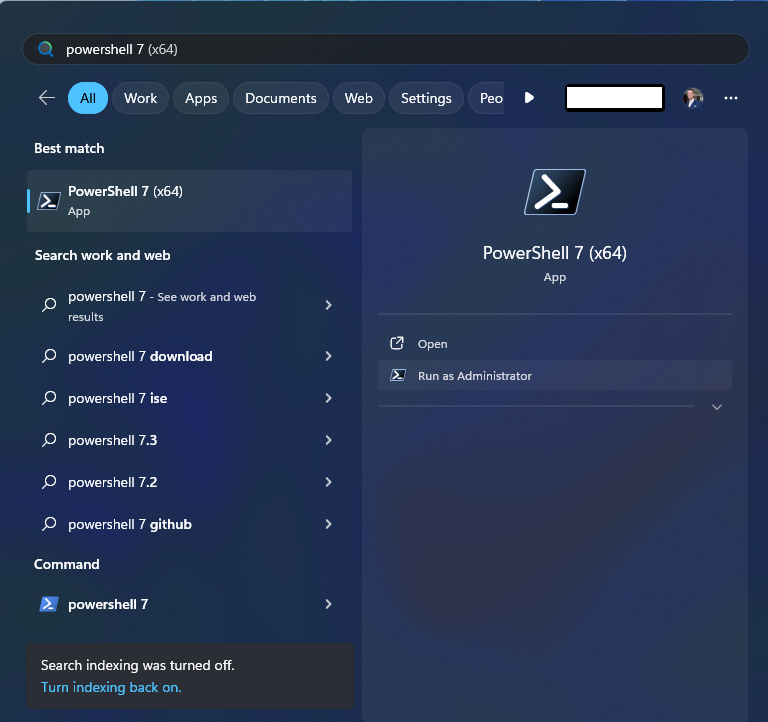
Execute the above in an Admin Powershell command prompt. The -NoRestart parameter suppresses the constant requests for a reboot. Make sure to reboot once all features are installed and you have a fully fledged IIS webserver on your development station.
Don’t forget to enable HSTS in IIS.
What additional features are available and how to add or remove one?
How to list all installed Windows Server Features using PowerShell Get-WindowsFeature and Get-WindowsOptionalFeature cmdlets.
To see all the features available related to IIS you can use:
Get-WindowsOptionalFeature -Online | Where-Object FeatureName -like 'IIS-*'Further, figuring out what is available, installed and what’s not, is easy. Here is how:
Check for installed features
Get-WindowsOptionalFeature -Online `
  | Where-Object { $_.State -eq "Enabled" } `
  | Format-Table -Property featurename
PowerShell provides the means to get, list & verify installed Windows and Windows Server Features. Use Get-WindowsFeature and Get-WindowsOptionalFeature cmdlets for this.
Here is getting and listing all installed Windows Server features, sorted by name:
# list all INSTALLED Windows Server features
Get-WindowsFeature `
  | Where-Object { $_.Installed -eq "True" } `
  | Format-Table DisplayName, Installed
Get-WindowsFeature `
| Where-Object { $_.Installed -eq "True" } `
| Format-Table Name, InstalledGet-WindowsFeature relies on the ServerManager module. If you don’t have Server Manager available, then you can use Get-WindowsOptionalFeature in Windows 11 / 10:
Get-WindowsOptionalFeature -Online `
  | Where-Object { $_.State -eq "Enabled" } `
  | Format-Table FeatureName, State
Check for available but not presently installed features
Get-WindowsOptionalFeature -Online | Where-Object { $_.State -eq "Disabled" } | Format-Table -Property featurenameDisable a Windows Feature
Disable-WindowsOptionalFeature -Online -FeatureName IIS-DirectoryBrowsingIf you ever need to remove IIS you can use PowerShell as well. Obviously, don’t forget to back up IIS first, and then remove IIS from Windows.
Summary
- This article explains how to Install IIS Windows using PowerShell on a Windows 11 development station.
- It provides steps to use PowerShell cmdlets like Get-WindowsOptionalFeature and Enable-WindowsOptionalFeature for installation.
- The guide includes managing IIS features and emphasizes automation for DevOps processes.
- You can check for installed features and remove IIS if necessary, with precautions for backing up.
- HSTS should be enabled after installation for added security.

Did you like this post?
Please take a second to support Sysadmins of the North and donate! ❤️
Your generosity helps pay for the ongoing costs associated with running this website like coffee, hosting services, library mirrors, domain renewals, time for article research, and coffee, just to name a few. ❤️