
If you want to be able to log on to your Windows Servers through Win32-OpenSSH, you can make use of key-based authentication in OpenSSH through a ~/.ssh/authorized_keys file. But if you have tens (hundreds) of servers and/or users, perhaps it’s easier to retrieve user SSH public keys from Active Directory (AD). In this article I’ll explain how.
If you have tens (hundreds) of servers and/or users it’s easier to retrieve user SSH public keys from Active Directory (AD) than from various unmanaged authorized_keys files. This post outlines the steps necessary for SSH public key authentication in an Active Directory environment.
The architecture
A high-level overview of how OpenSSH queries Active Directory via PowerShell.
graph LR
    subgraph ClientSide [Client Side]
        A[User Workstation]
    end

    subgraph TargetServer [Target Server]
        B[OpenSSH Service]
        C{AuthorizedKeysCommand}
        D[PowerShell Script]
    end

    subgraph IdentityProvider [Identity Provider]
        E[(Active Directory)]
    end

    A -- SSH Request --> B
    B -- Trigger --> C
    C -- Run Script --> D
    D -- LDAP Query --> E
    E -- Return Key --> D
    D -- Output Key --> B
    B -- Grant Access --> A

    style E fill:#f9f,stroke:#333,stroke-width:2px
    style D fill:#0078d4,color:#fff
    style B fill:#fff,stroke:#333
    style C fill:#ececff,stroke:#9370db
As shown in the diagram above, the OpenSSH service triggers a PowerShell script which acts as the intermediary to fetch the public key directly from the user’s AD object.
Have a YubiKey? Enable YubiKey support in OpenSSH for Windows.
Configure Active Directory (AD) Schema for SSH publick key authentication
To configure SSH public key-based authentication in OpenSSH for Windows Server, you first you need to extend your AD schema to allow for the storage of public keys. Just follow the great steps Ted Salmon posted at Storing SSH keys in Active Directory for easy deployment. It doesn’t really matter if you name your attribute sshPublicKeysshPublicKeys.
For the sake of this post, and to have all steps complete, I’ve redone the steps here.
Extend the Active Directory Schema
First, as an administrator – I’m sure you are – start your PowerShell prompt, and execute the following command to create a new DWORD key Schema Update Allowed with value 1:
# set Schema Update Allowed to true / 1
#
New-Itemproperty "HKLM:\SYSTEM\CurrentControlSet\Services\NTDS\Parameters" `
  -Name "Schema Update Allowed" `
  -Value "1" `
  -PropertyType DWORD `
  -Force
Perform this action on the domain controller having the Schema master FSMO role (netdom query fsmo).
When in doubt you can always use the regedit.exe GUI, even on Windows Server Core. Or create a .reg file and silently import .reg file in your Windows registry. Otherwise the schema cannot be updated.
Secondly, run regsvr32.exe C:\windows\system32\schmmgmt.dll to enable the Schema Editor snap-in for mmc.
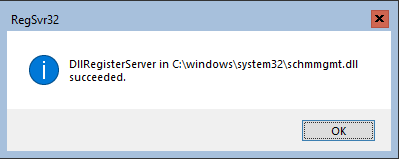
Now if you run mmc
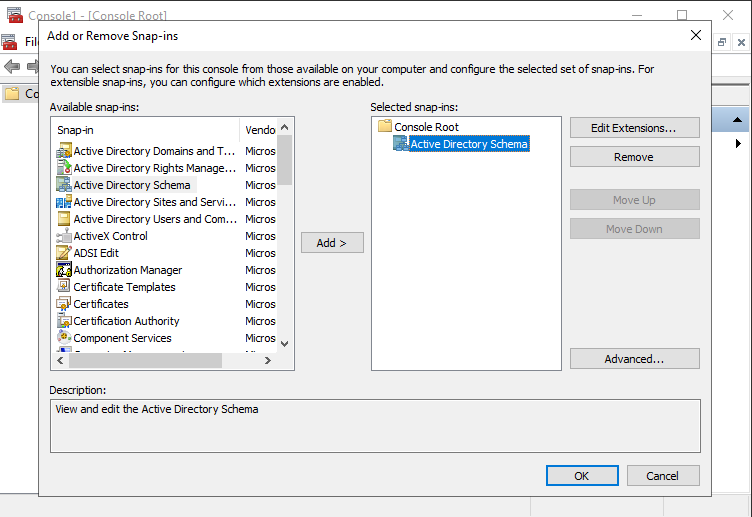
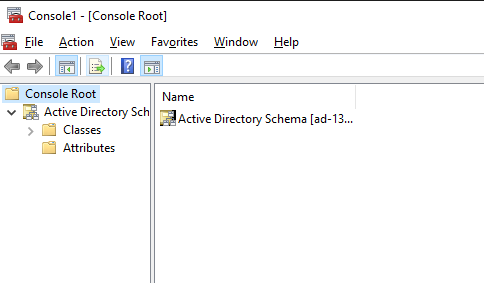
This is what you need to extend the Active Directory Schema.
The following steps might feel a bit tensive. Just keep calm. If you’re not already, make sure you are an Schema Admin.
Add a new Attribute
You first need to create a new Attribute in your AD Schema. Follow these steps:
- Right click Attributes and click Create New Attribute. Click Continue if a warning titled “Schema Object Creation” appears.
- Create a New Attribute Object values:
- Common Name:
sshPublicKey - LDAP Display Name:
sshPublicKey - Unique X500 Object ID:
1.3.6.1.4.1.24552.1.1.1.13 - Syntax: select
IA5-String - Minimum: can be left blank
- Maximum: can be left blank
- select Multi-Valued check box
- Common Name:
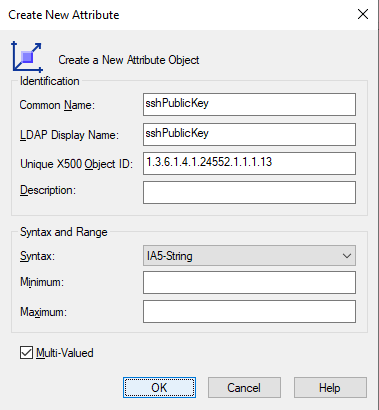
Now you can create a class for the attribute.
Add a new Class
As with the schema attribute, follow the steps to create a new class.
- Right click Classes and select Create Class
- Click Continue if a warning titled “Schema Object Creation” appears.
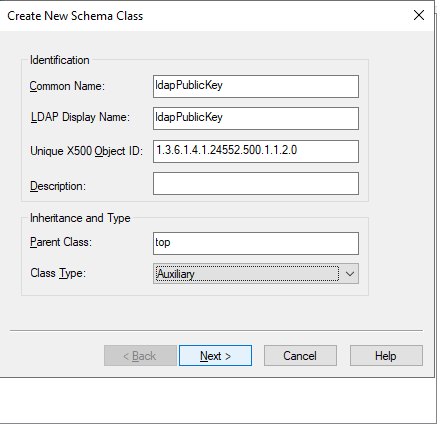
- Create New Schema Class values:
- Common Name:
ldapPublicKey - LDAP Display Name:
ldapPublicKey - Unique X500 Object ID:
1.3.6.1.4.1.24552.500.1.1.2.0 - Parent Class:
top - Class Type: select
Auxiliary
- Common Name:
- Click Next
- Under Optional Add and Select
sshPublicKey
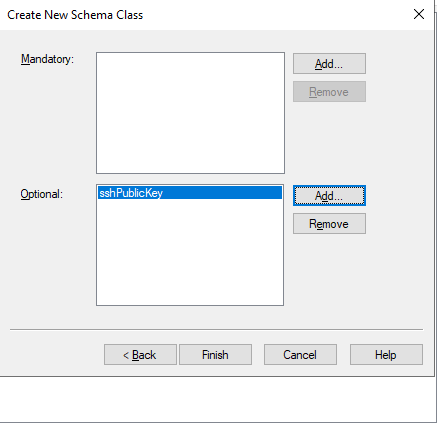
- Click Finish
Associate class to user objects
The class ldapPublicKeysshPublicKey
- Expand Classes, right click user and select Properties
- Click on the Relationship tab
- click Add Class under Auxiliary Classes
- select
ldapPublicKey, click OK - click Apply
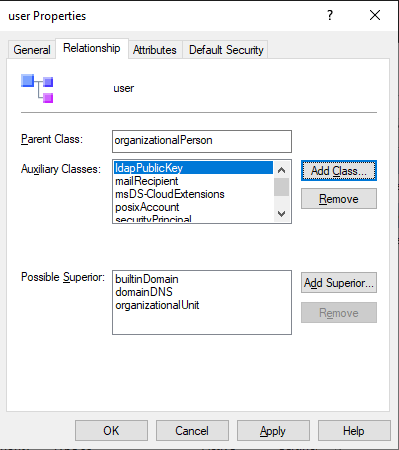
- click OK to close the window
- close MMC and other windows you may have open
Now you have your AD Schema extended. Let’s added a SSH public key! Later on you’ll need to reconfigure SSHD to look for a key in your Active Directory Schema.
Add SSH Public Key to Active Directory User properties
To manually add an SSH public key to a user’s properties, start Active Directory Users and Computers. Make sure Advanced Features are enabled under View > Advanced Features.
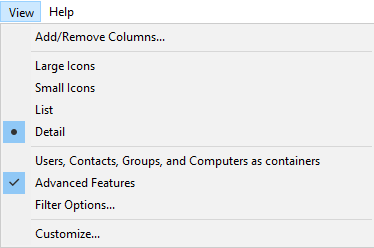
Browse to the user for whom you want to add a public SSH key, and follow these steps:
- Right click the user
- select Properties
- select the tab Attribute Editor
- scroll down to the
sshPublicKey - paste the public key into Value to add field and click Add
- repeat for a second or third public key if necessary
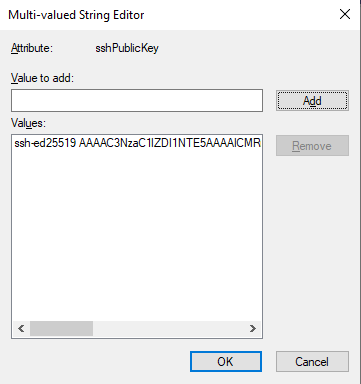
- Close the windows.
You must have at least OpenSSH 8.6.0.0p1-Beta
Open up the sshd_config_default file. It’s location may differ, for me it’s in the directory where I installed OpenSSH in Windows Server. Add the following to that file:
AuthorizedKeysCommand C:\Windows\System32\WindowsPowerShell\v1.0\powershell.exe -NoProfile -NonInteractive -File "c:\path\to\openssh\get-publickey.ps1" -username %u

AuthorizedKeysCommandUser "system"
Here, AuthorizedKeysCommand is the script sshd executes to retrieve the public key. More on this file later. The AuthorizedKeysCommandUser has to be set to System. This is fixed in 8.6.0, hence why you need at least this version.
Save the file and restart sshd:
Get-Service sshd | Restart-ServiceYou need a script that runs an AuthorizedKeysCommand to retrieve the public key from the user’s Active Directory sshPublicKeys property. For this, I use PowerShell, you may use something completely different.
[CmdletBinding()]
Param(
  [Parameter(Mandatory = $true, Position = 0)]
  [string]$username)$username = $username.Split("\")[1]
  $(
    ([adsisearcher]"(&(objectClass=user)(sAMAccountName=${username}))").FindAll() | select -Property *
  ).Properties.sshpublickey
This Powershell script used for the AuthorizedKeysCommand must be owned by SYSTEM or Administrators and not writeable by others. If a malicious user can edit that script, they can bypass authentication for everyone.
I chose to use adsisearcher because not all servers have the ActiveDirectory PowerShell module available that is required for Get-ADUser. In my scenario, the username that tries to authenticate is “domain\user”, so I split the username to lookup the username part in Active Directory. The key that is found is retrieved and printed.
SSH authentication flow diagram
This diagram shows the sequence of events from when the user attempts to connect, to the OpenSSH server executing the script, querying Active Directory, and finally authenticating the user.
sequenceDiagram
    autonumber
    actor User
    participant SSH as OpenSSH Server
    participant Script as PowerShell Script
    participant AD as Active Directory

    Note over User, SSH: 1. SSH Handshake &<br/>Key Exchange

    User->>SSH: Connect (Username)
    activate SSH
    SSH->>SSH: Match user in sshd_config

    Note right of SSH: Executing AuthorizedKeysCommand

    SSH->>Script: Execute Script with (Username)
    activate Script
    Script->>AD: Query for altSecurityIdentities (LDAP)
    activate AD
    AD-->>Script: Return Public Key(s)
    deactivate AD
    Script-->>SSH: Output Public Key(s)
    deactivate Script

    SSH->>User: Request Key Signature (Challenge)
    User-->>SSH: Provide Signature
    SSH->>SSH: Validate Signature against AD Key

    alt Signature is Valid
        SSH-->>User: Authentication Success!
        User->>SSH: Logged In
    else Signature is Invalid
        SSH-->>User: Authentication Failed
    end
    deactivate SSH
Test logging in using SSH keys
OK, you have:
- extended your Active Directory Schema to add support for SSH public keys.
- reconfigured
sshd_config - restarted sshd, and
- created a tiny script to pull the public key from the User properties (sshPublicKey attribute)
Now it’s time to test logging in. Ssh to your server and it should automatically log you in.
PS C:\Users\janreilink> ssh host.example.org
Microsoft Windows [Version 10.0.17763.3650](c) 2018 Microsoft Corporation. All rights reserved.

domain\janreilink@host E:\Users\janreilink>
This setup is particularly handy if you need to access a Windows Server over ssh from outside its AD domain, but still having a domain user.
One-time donation
Your donation 💸 helps support me in the ongoing costs running a blog like this one. Costs like coffee ☕, web hosting services 🖥 , article research 🔎 , and so on. Thank you 🙏 for your support❤️ https://www.paypal.com/paypalme/jreilink.
Conclusion configure SSH public key authentication for Windows Server in Active Directory
SSH Authentication via Active Directory altSecurityIdentities.
Now that Microsoft has released their OpenSSH variant for Windows Server, and if you want to support SSH for your users, it is advisable to enable SSH key authentication instead of a username and password combination. If you do not want to add a .ssh/authenticated_keys file for all your users (a tedious task with dozens / hundreds / thousands of servers), you can easily extend your Active Directory schema to store a public SSH key.
By storing public SSH keys in Windows Server Active Directory, you have a single location to manage keys instead of on all those separate servers. Win-win!
Leveraging Active Directory for SSH public key storage provides a centralized and secure method for managing Linux server access within a Windows-driven infrastructure. By utilizing existing AD attributes and PowerShell for automation, you can eliminate the overhead of manual key distribution while maintaining strict access control. This integration not only streamlines the workflow for sysadmins but also significantly strengthens the overall security posture of your hybrid environment.
Summary
- To log into Windows Servers using SSH, consider retrieving user SSH public keys from Active Directory instead of managing multiple authorized_keys files.
- To configure this, extend the Active Directory schema to include an sshPublicKey attribute and an ldapPublicKey class.
- Use PowerShell to create a script that fetches the public key based on the user’s AD attributes, and set the AuthorizedKeysCommand in the sshd_config file.
- After setting everything up, test logging in to ensure the SSH authentication works correctly using the public key stored in AD.
- Leveraging Active Directory for SSH public key storage streamlines management and enhances security within a Windows-driven environment.